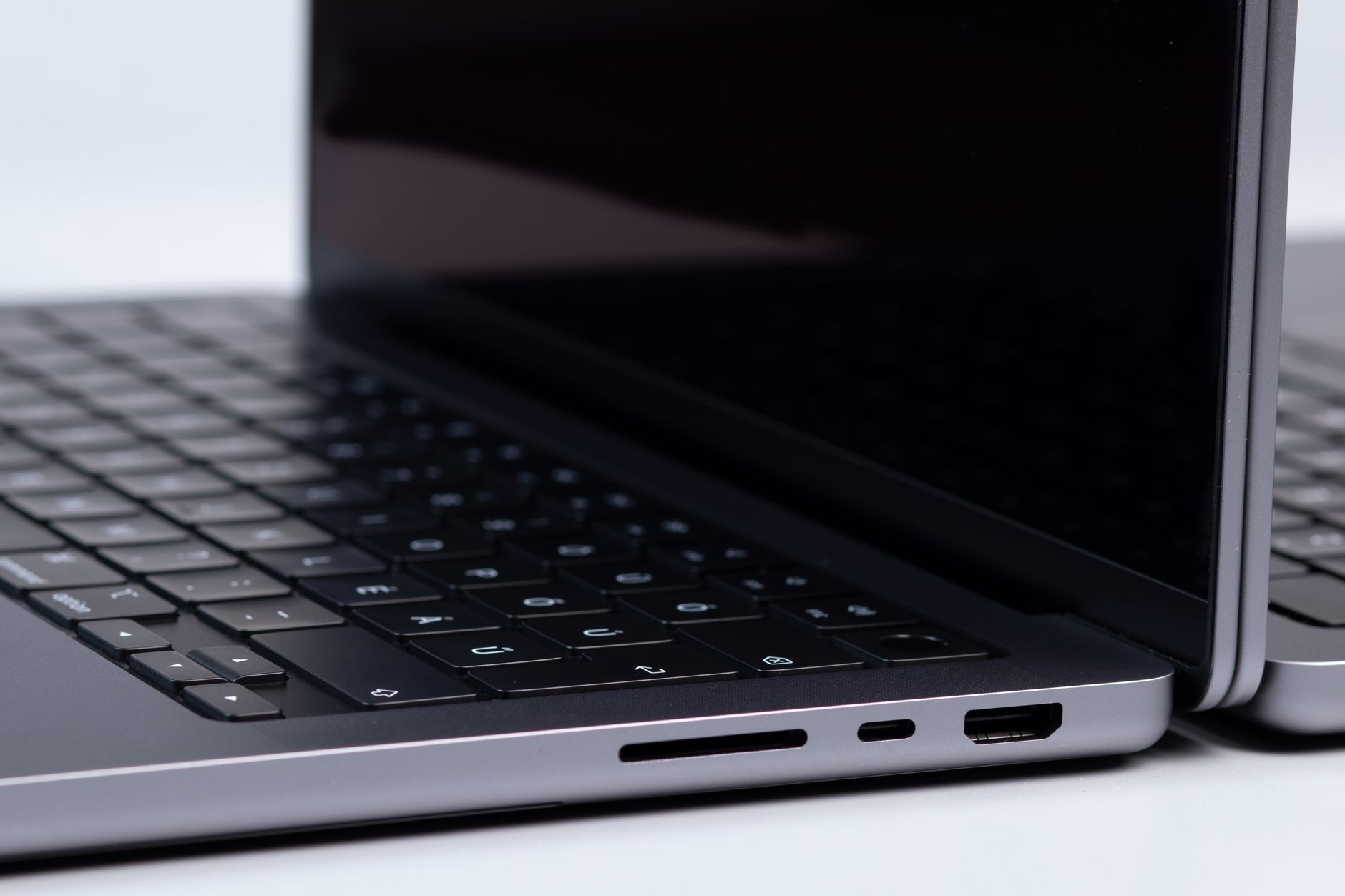
Remote Lock Windows devices is a new feature Microsoft is testing to help users secure their devices in case of loss or theft. This innovative approach aims to enhance data protection.
What is Remote Lock?
Remote Lock is a feature designed to enhance the security of Windows devices that may be lost or stolen. This innovative tool allows users to lock their devices from a distance, ensuring that unauthorized individuals cannot access sensitive information. With the increasing prevalence of mobile workforces, the importance of securing devices remotely has never been greater.
Here are some key points about Remote Lock:
- Access Control: Users can remotely lock their devices through a secure portal, preventing unauthorized access.
- Data Protection: Locking the device helps safeguard personal and corporate data from potential breaches.
- Ease of Use: The process is straightforward, allowing users to manage their device security quickly and efficiently.
- Peace of Mind: Knowing that you can remotely lock Windows devices offers significant reassurance in case of loss.
How does Remote Lock work?
Remote Lock is designed to enhance security for Windows devices by allowing users to quickly lock their devices from a distance. This feature is particularly useful in cases where a device is lost or stolen, providing an immediate line of defense against unauthorized access.
The process is straightforward:
- User Initiation: The user can initiate the Remote Lock through a secure Microsoft account or management portal.
- Device Communication: Once activated, the command is sent to the device, ensuring it locks without needing physical access.
- Confirmation: Users receive a confirmation notification, indicating that the device has been successfully locked.
This feature not only safeguards sensitive information but also offers peace of mind, knowing that Remote Lock can be employed swiftly in emergencies.
Benefits of using Remote Lock
Implementing Remote Lock Windows devices offers numerous advantages for users concerned about security. This feature allows individuals to quickly secure their devices in the event of loss or theft, minimizing the risk of unauthorized access to sensitive information.
Some key benefits include:
- Instant Security: Users can lock their devices remotely, ensuring that their data remains protected.
- Peace of Mind: Knowing that their devices can be secured at a moment’s notice helps alleviate anxiety regarding potential data breaches.
- Easy Recovery: A locked device can be tracked, increasing the chances of recovery while deterring thieves.
- Data Protection: Users can prevent access to critical files, keeping personal and professional information safe.
Overall, using Remote Lock is a proactive measure that enhances device security for Windows users.
Microsoft’s approach to device security
Microsoft has taken significant strides in enhancing device security, particularly through the recently tested feature of Remote Lock for Windows devices. This tool is designed to empower users to secure their devices swiftly in the event of loss or theft. By enabling users to lock their devices remotely, Microsoft aims to mitigate the risks associated with unauthorized access to sensitive information.
In addition to providing immediate security measures, Microsoft’s approach includes a user-friendly interface, making it accessible for all Windows users. Key aspects of this strategy include:
- Real-time Monitoring: Users can track their devices’ status remotely.
- Enhanced Privacy: Prevents unauthorized data access during lost device scenarios.
- Seamless Integration: Works within existing Windows security frameworks.
Overall, Microsoft’s focus on Remote Lock Windows devices reflects its commitment to improving security in an increasingly digital world.
User experiences with Remote Lock
Users have reported varying experiences with the Remote Lock feature for Windows devices, highlighting its effectiveness in enhancing security. Many have praised the ability to remotely lock Windows devices as a vital tool in preventing unauthorized access to sensitive information. One user recounted a situation where their laptop was stolen, and thanks to Remote Lock, they were able to secure their data swiftly.
Additionally, some users appreciated the straightforward process of activating Remote Lock through their Microsoft accounts. However, there are occasional concerns regarding connectivity issues, which can hinder the effectiveness of the feature. In contrast, users who had a stable internet connection found that Remote Lock worked seamlessly.
Overall, despite minor challenges, the consensus is that Remote Lock significantly contributes to peace of mind for users, ensuring their devices and data remain secure even in unfortunate circumstances.
Comparing Remote Lock to other security features
When considering security measures for Windows devices, Remote Lock stands out compared to traditional methods. Unlike standard passwords or biometric locks, which require physical access, Remote Lock Windows devices allows users to secure their systems from anywhere, providing a crucial advantage in cases of loss or theft.
Additionally, while antivirus software protects against malware, it does not prevent unauthorized access to a device that is already in the wrong hands. Remote Lock directly addresses this vulnerability by enabling users to lock their devices remotely.
Moreover, other features like encryption enhance security but do not offer the immediate response that Remote Lock provides. Users can act swiftly to prevent data breaches, making it a vital tool for anyone concerned about device security.
- Remote Lock: Instant security from anywhere
- Antivirus: Protects against infections but not unauthorized access
- Encryption: Secures data but does not prevent access
Future developments in Windows security
As cybersecurity threats continue to evolve, the future of Windows security is set to embrace more innovative solutions. One promising development is the enhancement of the Remote Lock feature for Windows devices, which aims to provide users with greater control over their data and device security.
Upcoming updates are expected to include:
- Integration with AI-driven security systems: This will allow for real-time monitoring and immediate responses to potential threats.
- Improved user interface: A more intuitive design will help users easily access and manage the Remote Lock feature.
- Expanded compatibility: Future versions may support a wider range of Windows devices, enhancing accessibility for all users.
The commitment to enhancing the Remote Lock functionality reflects Microsoft’s dedication to safeguarding user data in an increasingly digital world.
How to enable Remote Lock on Windows devices
Enabling the Remote Lock feature on Windows devices is a straightforward process that enhances security, especially for lost or stolen devices. Follow these steps to activate it:
- First, ensure your device is connected to the internet and has the latest Windows updates installed.
- Navigate to the Settings menu and select Accounts.
- Choose the Access work or school option, then select your account.
- Click on Info and look for the Remote Lock settings.
- Toggle the feature to On to enable it.
- For additional security, consider setting a strong password or PIN.
By following these simple steps, users can effectively utilize Remote Lock on Windows devices, providing peace of mind in case of device loss.
With the increasing number of cyber threats, using tools to Remote Lock Windows devices has become essential for protecting sensitive information. By implementing this feature, organizations can ensure that their Remote Lock Windows devices are secure even in the event of loss or theft.
via Wikimedia Commons
Sources
Garlic LLM PlayStation 4: Best Proven AI Model Performance · iPhone Pro redesign: The Best Update Revealed by Leaker · Open Source AI Models: The Best Proven Tools for 2023