
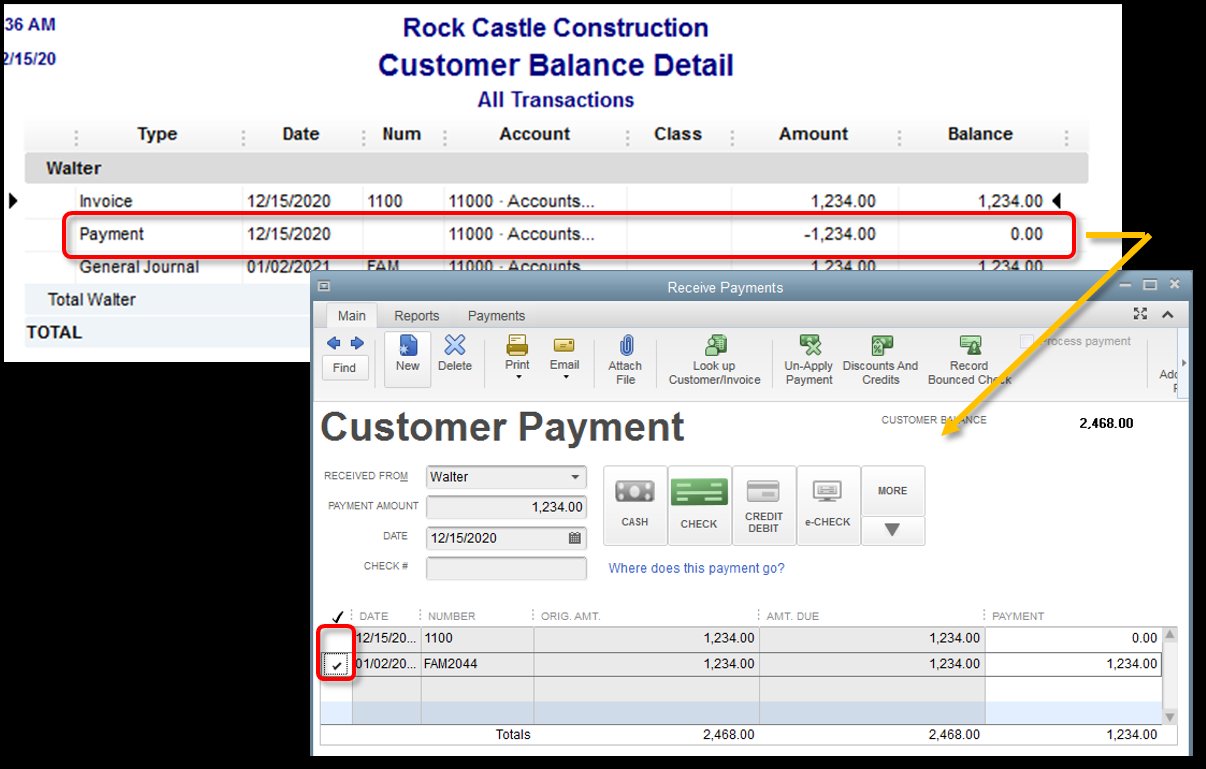
To record a returned check in QuickBooks Online, you need to follow a simple process. First, locate the original transaction associated with the returned check. Next, create a journal entry to adjust the accounts affected by the returned check. Lastly, mark the check as “Bounced” to accurately reflect the transaction in your records. This guide will walk you through the steps needed to easily manage returned checks in QuickBooks Online. Let’s dive in and streamline your financial tracking effortlessly.

How to Record Returned Check in QuickBooks Online
Introduction
Welcome back, young accountants! Today, we are going to learn an essential skill in managing your finances using QuickBooks Online. Have you ever wondered what to do when a check you received bounces back and is returned by the bank? Don’t worry; we’ve got you covered! In this comprehensive guide, we will walk you through the process of recording returned checks in QuickBooks Online step by step. Let’s dive in!
Understanding Returned Checks
Before we jump into the practical steps, let’s make sure we understand what a returned check is. A returned check, also known as a bounced check, is a check that cannot be processed by the bank because of insufficient funds in the account of the check writer. When you receive a returned check, it’s crucial to record it properly in your accounting records to reflect the accurate financial situation.
Step-by-Step Guide to Recording Returned Check
Step 1: Create a New Expense
The first step in recording a returned check in QuickBooks Online is to create a new expense transaction. This transaction will help you track the funds that were supposed to be received but are now returned. To do this, follow these simple steps:
1. Log in to your QuickBooks Online account.
2. Go to the “+ New” menu and select “Expense.”
3. Fill in the necessary details such as the payee, date, and amount of the returned check.
Step 2: Choose the Bank Account
Next, you need to choose the bank account from which the original check was deposited. This step ensures that the returned amount is deducted from the correct account. Select the appropriate bank account from the drop-down menu in the expense transaction form.
Step 3: Add a Memo
Adding a memo to the expense transaction is essential for keeping track of why the check was returned. In the memo, you can include details such as the reason for the returned check, the check number, and any other relevant information that can help you identify the transaction later on.
Step 4: Categorize the Expense
To accurately reflect the returned check in your financial records, you need to categorize the expense properly. You can create a new account specifically for returned checks or choose an existing expense category that best fits the situation. Make sure to select the appropriate account to classify the expense correctly.
Reconciling Returned Checks
Once you have recorded the returned check in QuickBooks Online, it’s essential to reconcile your accounts to ensure everything balances correctly. Reconciliation is the process of matching your financial records with your bank statements to identify any discrepancies. Here’s how you can reconcile returned checks in QuickBooks Online:
Step 1: Review Bank Reconciliation
Navigate to the “Banking” tab in QuickBooks Online and select “Reconcile.” Choose the bank account where the returned check transaction is recorded. Review the transactions listed and ensure that the returned check transaction is included in the reconciliation process.
Step 2: Match Transactions
During the reconciliation process, match the returned check transaction with the corresponding entry in your bank statement. Make sure that the amounts and details match accurately. If there are any discrepancies, investigate and correct them before finalizing the reconciliation.
Step 3: Reconcile and Verify
Once you have matched all transactions and verified the accuracy of your records, proceed to reconcile the bank account. QuickBooks Online will prompt you to confirm the reconciliation once all transactions are accounted for correctly. Verify the reconciliation report to ensure that everything balances.
Congratulations, young accountants! You have successfully learned how to record returned checks in QuickBooks Online. By following the step-by-step guide provided in this article, you can now efficiently manage returned checks and maintain accurate financial records in your accounting software. Remember, proper recording and reconciliation of returned checks are vital for maintaining the integrity of your financial data. Keep practicing and honing your accounting skills, and you’ll be a financial whiz in no time! Happy accounting!
How to Record a Bounced Check in Quickbooks Online
Frequently Asked Questions
How do I record a returned check in QuickBooks Online?
To record a returned check in QuickBooks Online, you need to first create a journal entry to reverse the original check transaction. Navigate to the “+” icon on the top right corner, then select “Journal Entry” under the “Other” section. Enter the date of the original check, select the bank account used, and enter the amount as a negative number to reverse the check amount. Provide a clear description of the transaction, such as “Returned check from [customer name].” Save the journal entry to complete the recording process.
Can I track returned checks in QuickBooks Online for reporting purposes?
Yes, you can track returned checks in QuickBooks Online by using the “Check Register” report. Go to the “Reports” tab, search for and select “Check Register.” Customize the report to include the necessary columns such as check number, date, and amount. Look for the specific transaction related to the returned check and use this report for tracking and reconciliation purposes.
What steps should I take after recording a returned check in QuickBooks Online?
After recording a returned check in QuickBooks Online, it’s essential to follow up with the customer regarding the returned payment. Communicate with the customer to address the issue and arrange for alternative payment methods if necessary. Keeping open communication can help maintain a positive relationship with the customer despite the returned check situation.
Final Thoughts
To record a returned check in QuickBooks Online, navigate to the Banking tab and select the account where the check was originally deposited. Locate the transaction for the bounced check and select it. Click on the “More” button and choose “Record as a bounced check.” Enter the necessary details like the date, new payment method, and fee. Confirm the changes to accurately document the returned check in QuickBooks Online. Remember, accuracy is key when recording a returned check in QuickBooks Online to maintain tidy and organized financial records.


